Getting started with HostCrust
You'll create an account, turn on two-factor sign-in (required before you can see any server data), and connect your first server. It takes a few minutes, and the first three servers are free.
In the app: Create your account Go to your servers
HostCrust runs at app.hostcrust.com. This page walks through the one-time setup. If you were invited by a teammate, follow the link in your invitation email instead — it brings you to the same account setup, already attached to their organization (see Team & roles).
1. Create your account
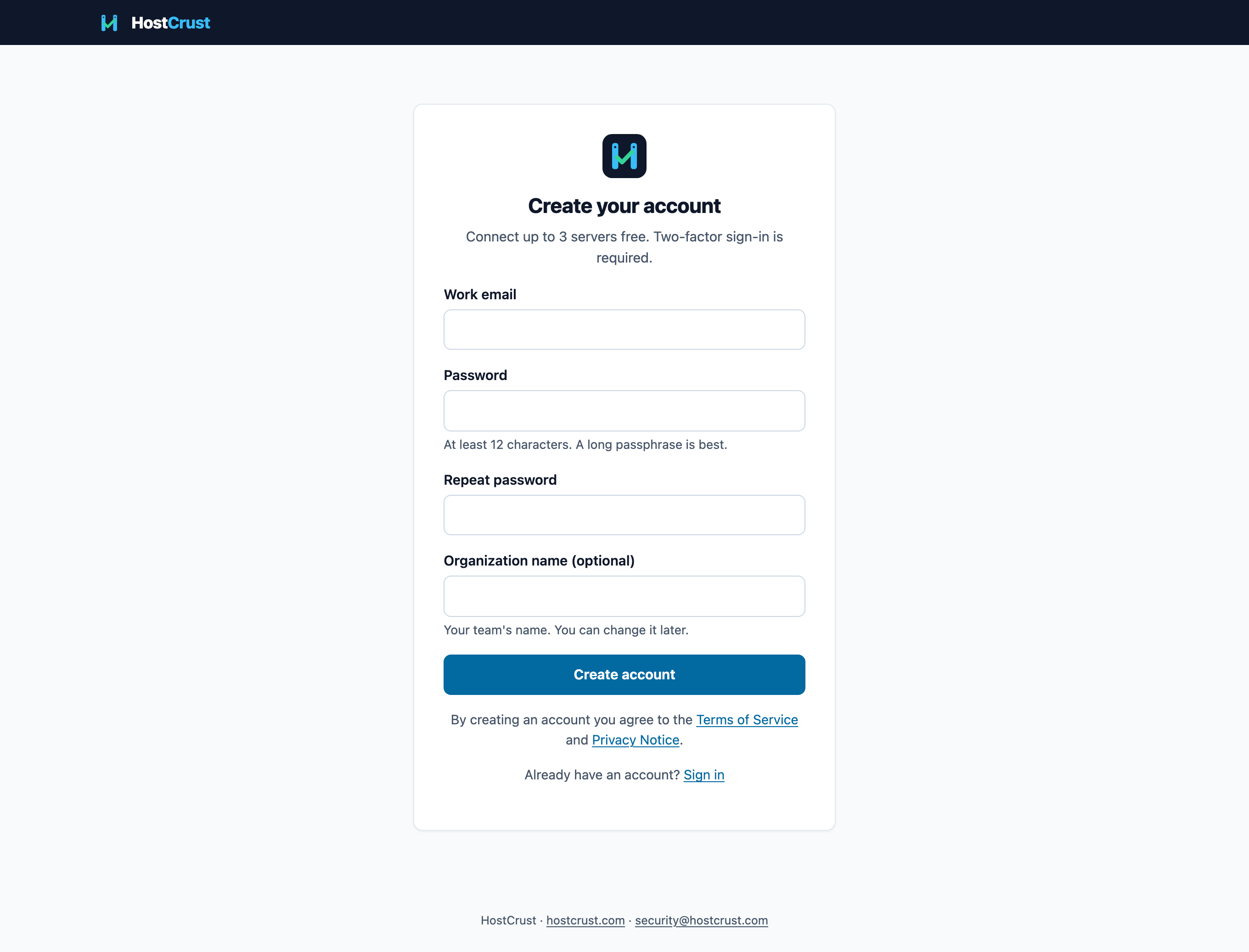
On the sign-up page, enter your work email, a password, and a name for your organization (for example your company name). You'll get an email with a link to confirm your address; open it to continue. You can't add servers until your email is confirmed.
2. Turn on two-factor sign-in
After you sign in with your password the first time, HostCrust asks you to set up two-factor sign-in with an authenticator app (TOTP). Scan the QR code, enter a code to confirm, and save the ten recovery codes it shows you — they're the way back in if you lose your authenticator. You won't see any servers or data until this step is done. HostCrust also asks for a fresh two-factor check (within the last 12 hours) before you approve a change.
3. Connect your first server
Open Servers → Add server, create a short-lived enroll token, and run the install command on your server as root. The agent enrolls, uploads its first inventory, and your server appears in the list. Full steps are in Add a server.
What you get, per server, every day
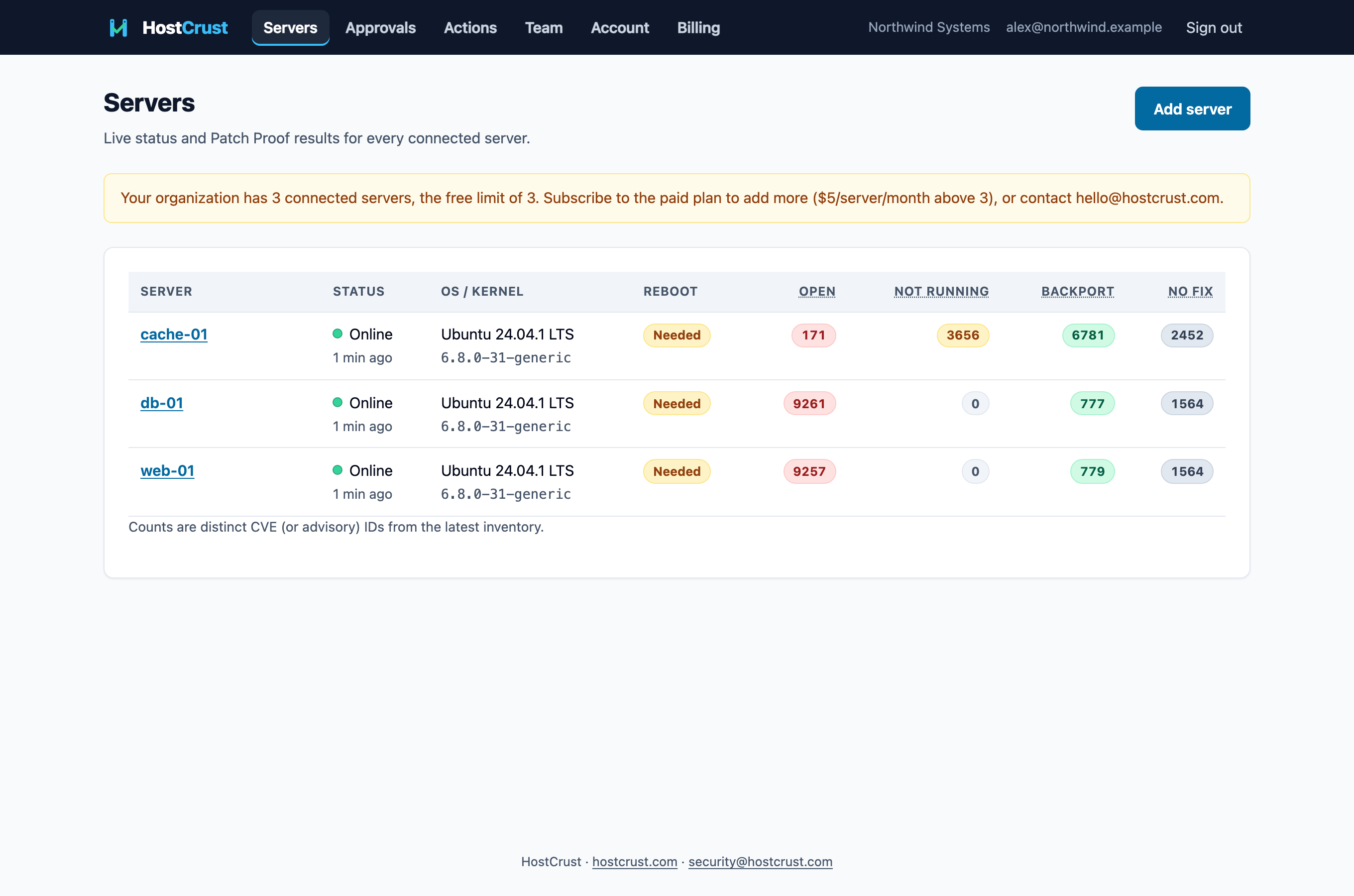
- Patch Proof — a backport-aware, per-CVE view of what's really open, split into Open, Not running, Fixed by backport and No fix yet. See Reading Patch Proof.
- Guarded changes — patch, reboot and service-restart actions that follow request → policy → approval → run → verify → receipt. See Applying a patch.
- Receipts — a verifiable record of every change, which admins can export for the whole organization.
Invite your team
You don't have to run HostCrust alone. On the Team page you can invite teammates and give each one a role — from a read-only Viewer up to an Owner. Roles decide who can request changes, who can approve them, and who manages servers and billing. See Team & roles.
This documents the HostCrust product as of November 17, 2026. The screenshots are from the app.
FAQ
Is two-factor sign-in required?
Yes. HostCrust shows no server data until two-factor sign-in is set up and used. This applies to every member of your organization, including people you invite.
What is an organization?
An organization owns your servers, your team and your billing. When you sign up you create one; you can create more and switch between them. Everything in HostCrust is scoped to the organization you're in.
What happens right after I connect a server?
The agent uploads a package inventory. Within seconds Patch Proof classifies it, and the server page shows which CVEs are open, which are fixed but not yet running, which were fixed by a backport, and which have no fix yet.