Add a server (install the agent)
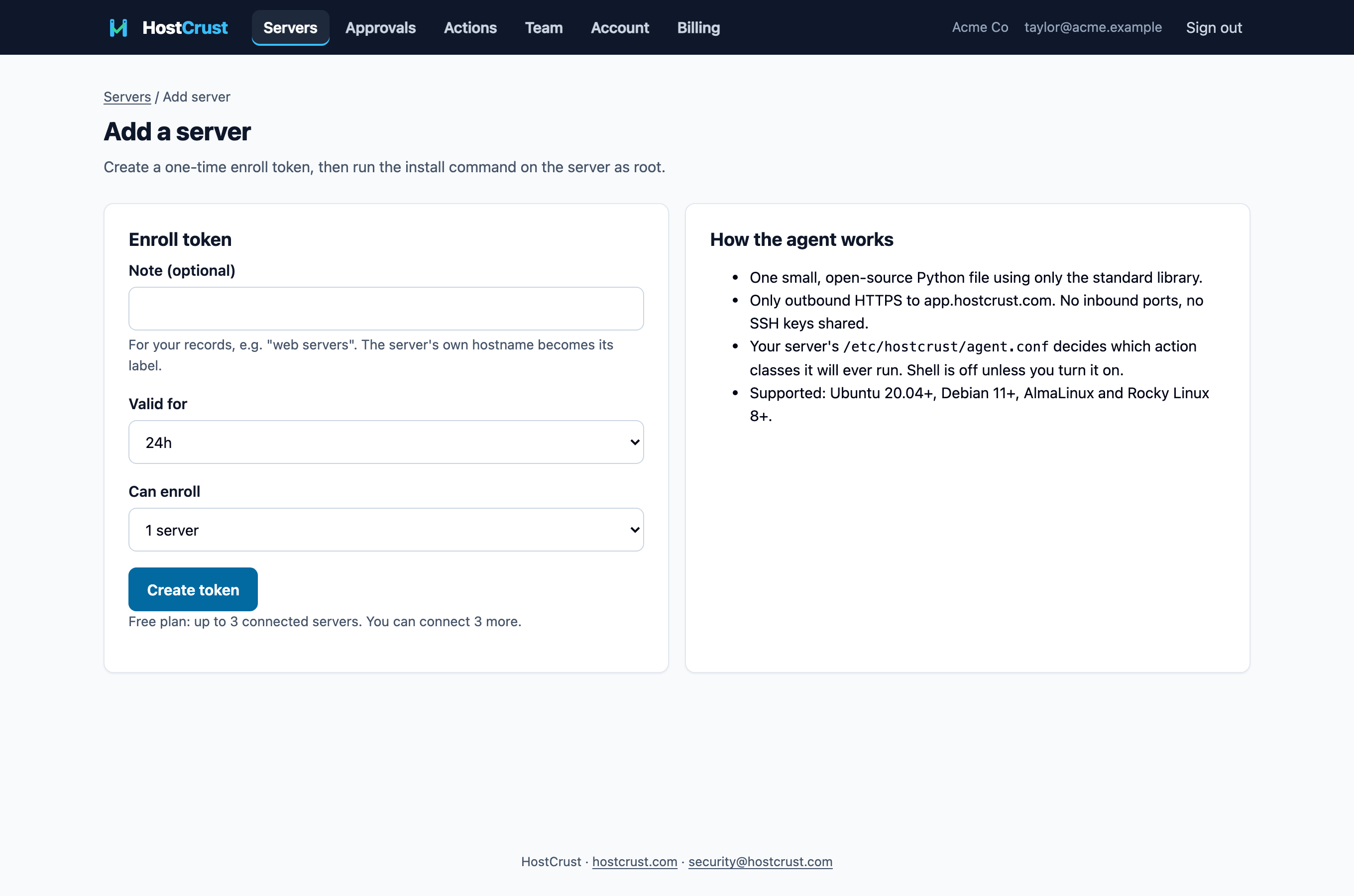
To connect a server you create a short-lived enroll token in HostCrust, then run one install command on the server as root. The agent is a single small Python file that only ever connects outbound to HostCrust.
In the app: Add a server
You add a server in two steps: create an enroll token in HostCrust, then run the install command on the server. You'll need to be signed in with a confirmed email address, and your role must allow managing servers (Admin or Owner — see Team & roles).
1. Create an enroll token
Open Servers → Add server. Optionally add a note for your own records (for example "web servers"); the server's own hostname becomes its label. Choose how long the token is valid (24 hours by default) and how many servers it can enroll, then Create token.
2. Run the install command on the server
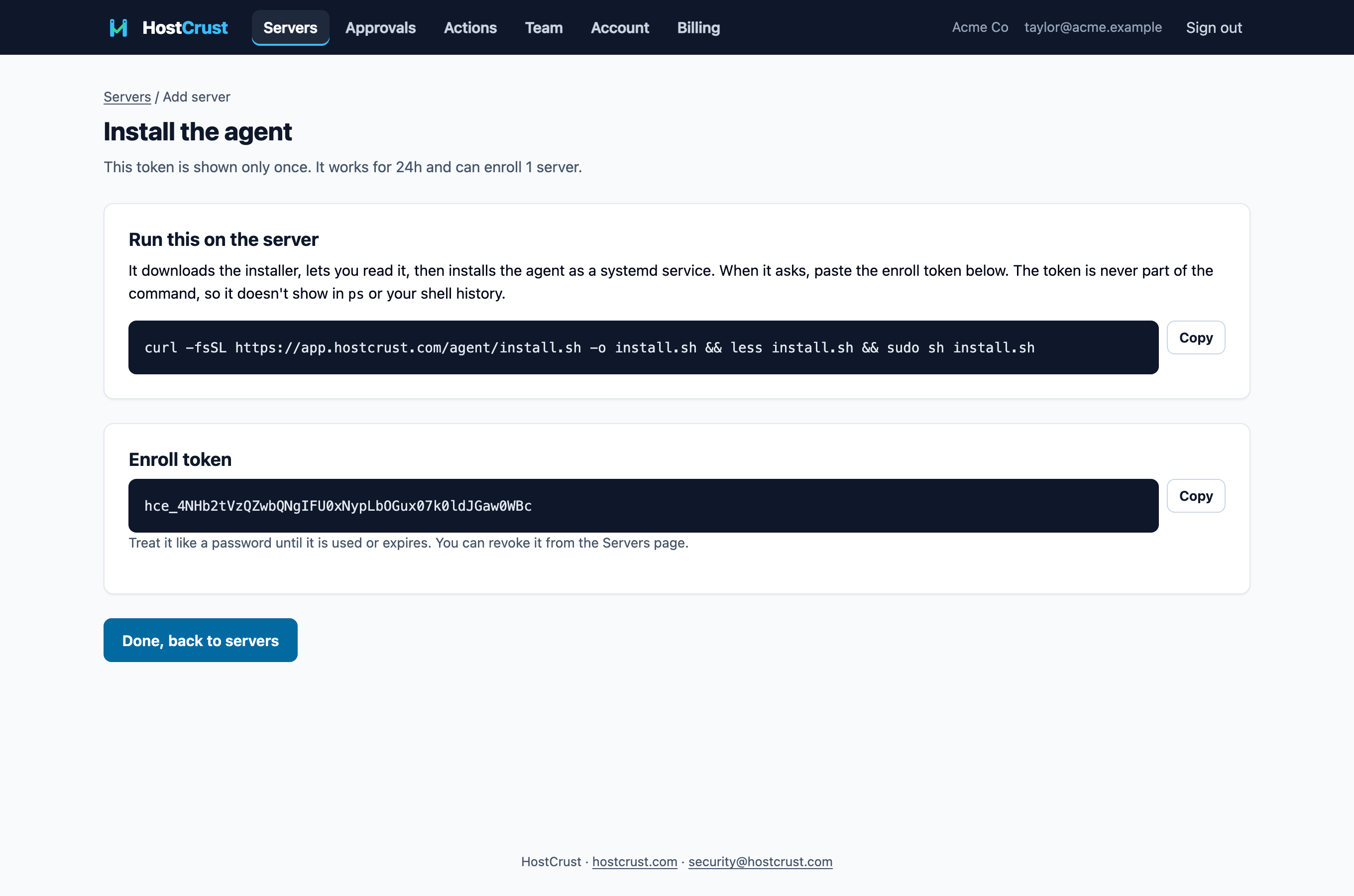
HostCrust shows the install command. Run it on your server as root:
curl -fsSL https://app.hostcrust.com/agent/install.sh -o install.sh && less install.sh && sudo sh install.sh
It downloads the installer, lets you read it in less (press q to continue), then installs the agent as a systemd service. When it asks, paste the enroll token. The token is never part of the command, so it doesn't appear in ps or your shell history.
3. Confirm it connected
Within a few seconds the server appears on your Servers page and uploads its first package inventory. Open the server to watch Patch Proof classify it. From here, every day, the agent uploads a fresh inventory and HostCrust re-checks it.
What the agent is (and isn't)
- One small, open-source Python file using only the standard library.
- Only outbound HTTPS to app.hostcrust.com. No inbound ports, no SSH keys shared.
- Your server's /etc/hostcrust/agent.conf decides which action classes it will ever run. Shell is off unless you turn it on there.
- Read-only by default: it reports status and inventory. It makes a change only when a change has been requested, checked against policy, and approved — see Applying a patch.
Removing a server
On the server's page, Revoke stops its agent token from connecting immediately. To also remove the agent from the server itself, run this there:
curl -fsSL https://app.hostcrust.com/agent/uninstall.sh -o uninstall.sh && less uninstall.sh && sudo sh uninstall.sh
Revoking frees a slot against your free-server limit. You can also Archive a revoked server to hide it from the list while keeping its actions and receipts.
This documents the HostCrust product as of November 17, 2026. The screenshots are from the app.
FAQ
Does the agent open any ports or need SSH access?
No. The agent makes only outbound HTTPS connections to app.hostcrust.com. There are no inbound ports and no SSH keys are shared.
Which Linux distributions are supported?
Ubuntu 20.04+, Debian 11+, and AlmaLinux and Rocky Linux 8+.
Is the enroll token part of the install command?
No. The command is the same for everyone; the installer asks for the token interactively, so the token never shows up in ps or your shell history. Treat the token like a password until it's used or expires.
How many servers can I connect for free?
Up to 3 connected servers are free. Above that it's $5 per connected server per month — see Billing.